
Compositions
Compositions serve as your main Layout entry point. A Composition can be rendered as a page or in a modal. In the future there will be even more composition types to choose from.
Composition List
In the compositions list view, you can create new compositions or edit existing ones.
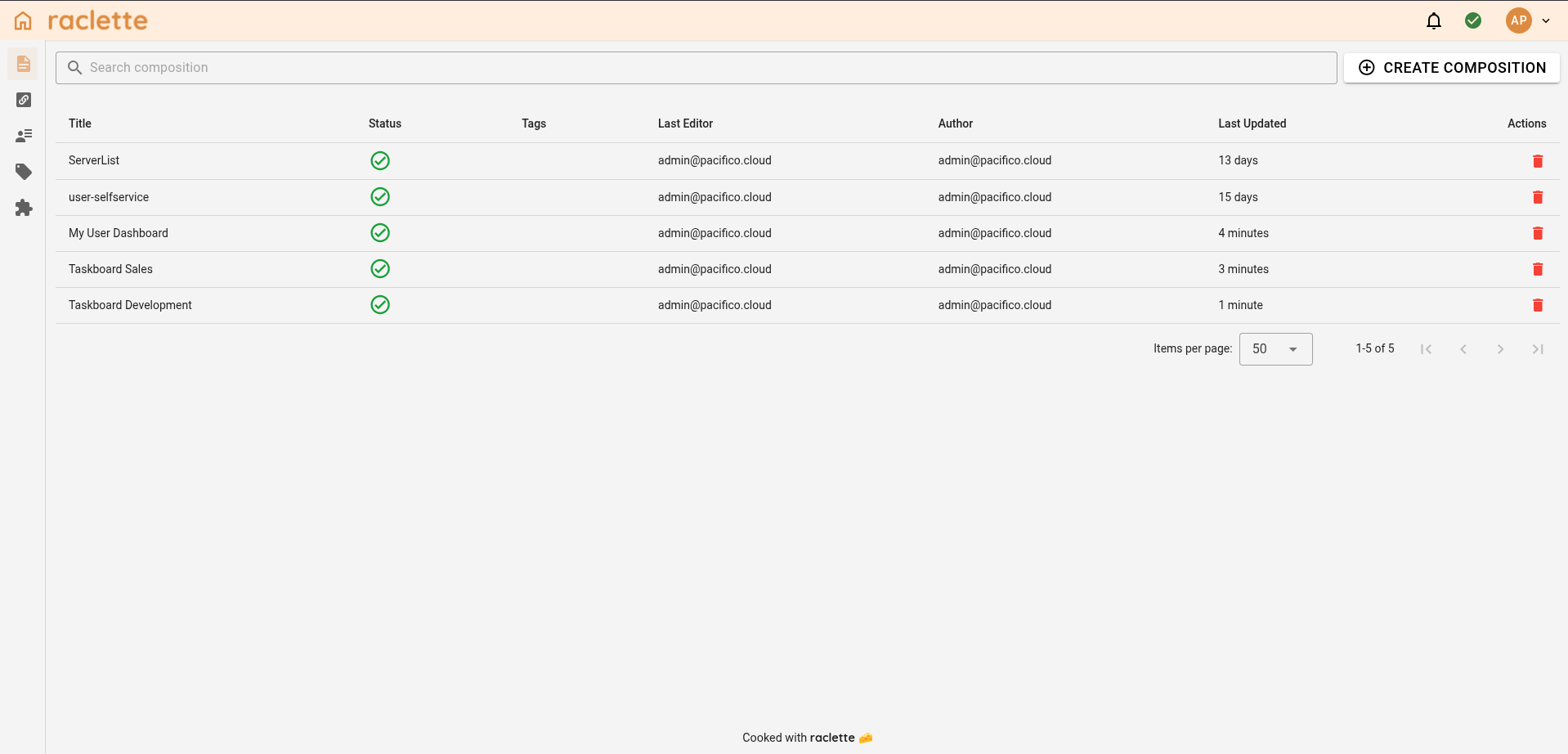
Create Composition
Creating a new composition is a three-step wizard:
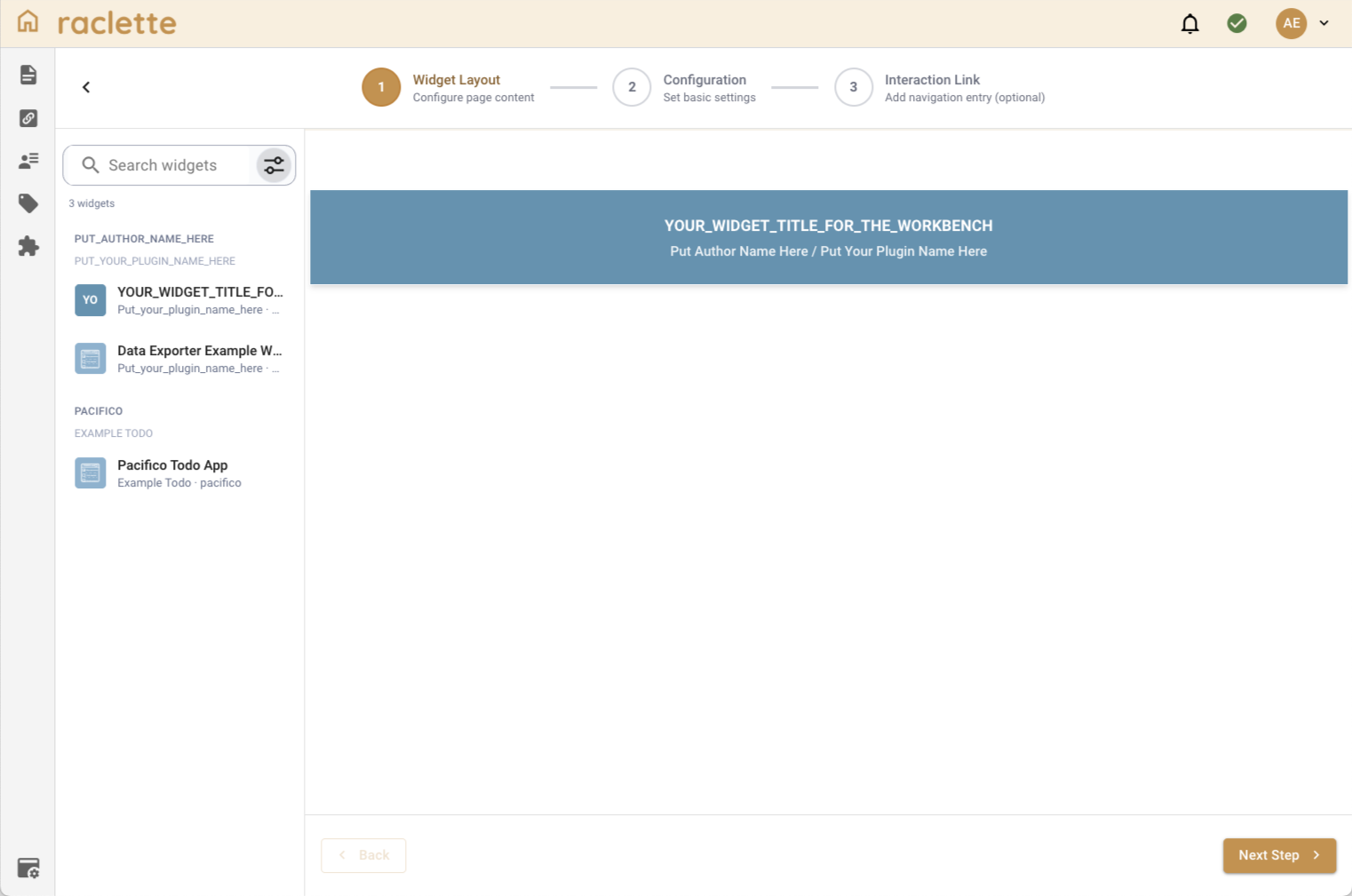
1. Widget layout
Arrange widgets on the page (drag from the widget list (left) into the drop zone (right)) You can adjust the size of each widget via dragging on the edges. Note that this is a WIP and can behave a bit odd.
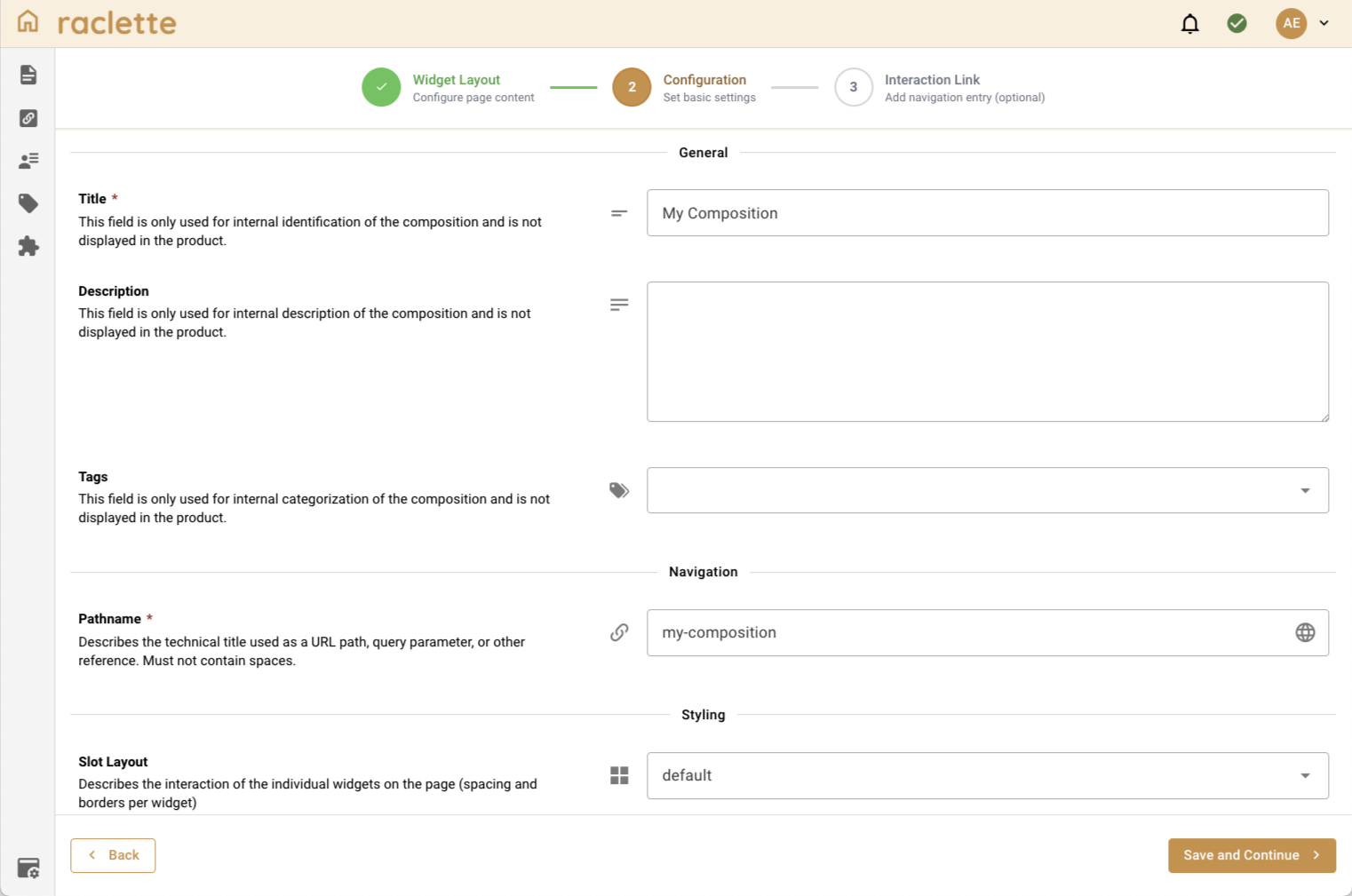
2. Configuration
Set title, pathname, tags, and slot layout. Click Save and Continue to persist the composition.
TIP
Widgets might provide configuration options. Hover over a widget in the drop zone and click the cog icon.
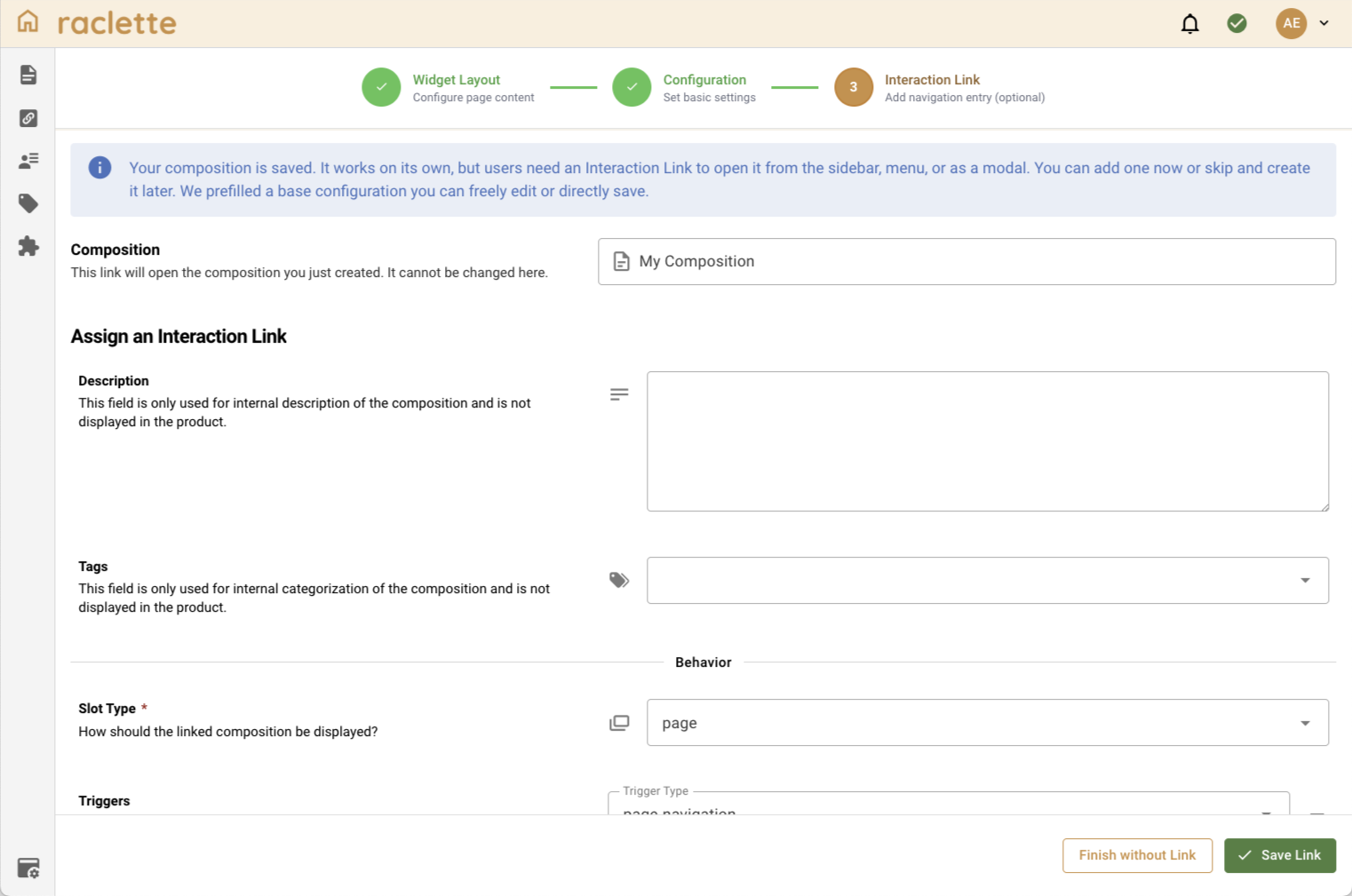
3. Interaction Link (optional)
Add a link so users can open the composition from the sidebar, menu, or as a modal. Use Save Link or Finish without Link to return to the list.
TIP
A composition works without an Interaction Link, but end users need a link to discover and open it in the application navigation. Otherwise only direct links are possible.
Edit Composition
Editing an existing composition uses the same first two steps as create: Widget layout, then Configuration. Use Save to persist without leaving; on the last step, Save & Finish returns to the list. Step 1 offers Save and Next; use the header back control to return to the list without finishing.
Interaction Links
To attach a link to an already saved composition later, use Interaction Links in the workbench and create a new link there.